Introduction
Most gamers spend hours researching GPUs and monitors but give almost no thought to the physical setup supporting all that hardware. That's a problem. The American Optometric Association reports that digital eye strain risk climbs sharply after just two continuous hours of screen time — and the average gamer logs more than eight hours per day on digital screens. A 2022 systematic review of 62,987 participants found that gaming above three hours per day is a significant predictor of musculoskeletal disorders.
Most of that damage is preventable. The hardware earns the research hours — but the setup determines whether you can keep using it.
This guide covers the variables that determine whether your gaming desk setup supports both performance and long-session health: desk sizing, chair calibration, monitor positioning, peripheral placement, cable management, and lighting. Work through it in sequence, as each step builds on the last.
Key Takeaways
- Desk sizing: 55–60 inches wide for single-monitor setups; 60–72 inches for dual-monitor or streaming configurations; 28–32 inches deep for safe monitor distance
- Ergonomics first: Set chair height before positioning monitors — monitor height is derived from your eye level when seated correctly
- Monitor placement: Top of screen at or just below eye level, 20–28 inches from your eyes
- Cable management: Wireless peripherals make the single biggest visual difference; built-in wire channels beat aftermarket trays for everything else
- Build order: Desk and chair → monitor position → peripherals → lighting and accessories
What You Need Before Setting Up Your Gaming Desk
Preparation determines how well everything fits together. Buying gear before auditing your space and body measurements leads to expensive adjustments.
Space and Desk Requirements
Desk width recommendations vary by configuration:
| Setup Type | Recommended Width | Recommended Depth |
|---|---|---|
| Single monitor | 55–60 inches | 28–32 inches |
| Dual monitor | 60–72 inches | 28–32 inches |
| Ultrawide or streaming | 70–72 inches | 30–32 inches |
These ranges reflect manufacturer guidance from products like Secretlab's MAGNUS Pro (59.1" × 27.6") and UPLIFT's sizing recommendations, not formal ergonomic standards. Depth is a different story: OSHA specifies monitors should sit at least 20 inches from your eyes, and most guidelines place the safe range at 20–28 inches.
Core Gear Checklist
Essential:
- Desk (appropriate size for your configuration)
- Chair with adjustable height, lumbar support, and armrests
- Monitor(s) with appropriate refresh rate for your games
- Keyboard and mouse
- Power strip with surge protection
- Large mousepad (especially for FPS players)
High value:
- Monitor arm or stand
- Under-desk cable tray
- Headset stand or wall hook
Optional:
- USB hub, monitor lamp, streaming camera/ring light
Ergonomic Measurements to Take First
Before purchasing anything, measure three things while seated in your current chair:
- Seated elbow height — distance from floor to elbow with shoulders relaxed; determines your ideal desk height
- Eye level when seated upright — determines the monitor arm range you need
- Floor-to-knee clearance — confirms the desk leaves enough leg room underneath
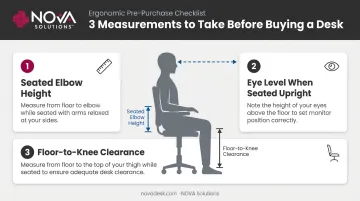
Run these numbers before ordering anything — a desk that's 2 inches too short or a monitor arm that doesn't reach your eye level are fixable on paper, not after delivery.
How to Set Up the Perfect Gaming Desk Step by Step
The sequence matters here. Setting up the desk and chair before placing monitors prevents re-routing cables and re-adjusting monitor arms after everything is already in place.
Step 1: Choose and Position Your Desk
Desk type by room size and configuration:
- Flat/straight desks work for most single and dual-monitor setups with straightforward cable management
- L-shaped desks suit triple-monitor or streaming rigs with a lot of gear — they require a corner and more floor space
- Corner desks follow the same logic as L-shaped but are typically shallower on the secondary wing
For most gamers, a straight desk between 55 and 60 inches handles a single monitor plus full peripherals comfortably. NOVA Solutions' eSports Gaming Desks, designed for institutional gaming labs and university esports programs, are available in 36", 42", 48", and 60" widths. All share a consistent 30" depth engineered to maintain proper monitor distance while leaving room for keyboard and mouse movement.
Desk height should match your seated elbow height with shoulders relaxed — not a fixed number. Adjustable-height desks make this calibration simpler, especially for shared setups where multiple people use the same station.
Step 2: Set Up Your Chair and Calibrate Seating Posture
Correct seated posture checklist:
- Feet flat on the floor (or on a footrest)
- Thighs approximately parallel to the floor
- Knees at roughly 90 degrees
- Lumbar support in contact with your lower back
- Forearms parallel to the desk surface
- Shoulders relaxed — not raised or hunched
The chair must be calibrated before the monitor is positioned. Monitor height is derived from your eye level when seated correctly. Set the chair first, sit in correct posture, then mark your eye level. That mark tells you where to set the top of your monitor.
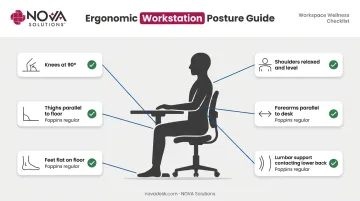
For armrests: look for 4D adjustability (height, width, depth, and angle). Forearms should rest on the armrests without raising your shoulders.
Step 3: Position Your Monitor(s) for Performance and Eye Health
Per OSHA and Mayo Clinic guidance, the top of the screen should sit at or just below eye level, with the monitor 20–28 inches from your eyes (roughly arm's length). The AOA specifies the center of the screen should fall 15–20 degrees below eye level, which reduces neck extension during long sessions.
For dual-monitor setups:
- Primary monitor centered directly in front of you
- Secondary monitor angled at approximately 30 degrees to the side
- Both monitors at the same height to avoid neck asymmetry
Performance-focused vs. immersive setups:
- FPS and competitive play: single flat panel, 24–27 inches, high refresh rate, positioned to minimize neck movement
- RPG, sim, and streaming: ultrawide or dual monitors for a wider field of view and multitasking
Research shows meaningful performance gains when moving from 30Hz to 60Hz or higher. The differences between 60Hz, 144Hz, and 240Hz are less clear-cut: a 2024 FPS study found statistically significant score improvements mainly when comparing very low refresh rates to higher ones, not consistently across the higher tiers. Buy based on your GPU's actual output capability, not the monitor's ceiling.
Step 4: Arrange Peripherals and Manage Cables
Peripheral placement:
- Keyboard centered beneath the monitor
- Mouse on your dominant side with enough travel area (FPS players using lower DPI settings need significantly more surface space than casual or productivity users)
- Tenkeyless (TKL) keyboards free up 2–3 inches of mouse room, which adds up in competitive play
Cable management in order of impact:
- Switch to wireless peripherals where possible — single biggest surface cleaner
- Route power strip and brick cables into an under-desk cable tray
- Bundle cables by destination using velcro ties (not zip ties — they're hard to undo)
- Run remaining cables along desk legs using adhesive clips
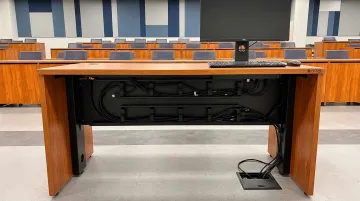
Desks with integrated wire management channels handle most of this at the furniture level. NOVA Solutions' iMod™ system, standard across their technology furniture line, routes cables through a built-in compartment at the back of the unit with a removable panel for access, with no aftermarket tray required.
Step 5: Set Up Lighting and Finishing Accessories
Bias lighting (LED strip mounted behind the monitor) softens the contrast between a bright screen and a dark wall. This reduces eye fatigue during long sessions. The AOA recommends controlling glare from both windows and overhead lights, and bias lighting addresses the screen-wall contrast that overhead lights can't fix.
For bias light color accuracy, display calibration sources recommend 6500K (D65) white light at around 10% of the monitor's peak brightness. RGB color-cycling looks great but doesn't reduce eye strain.
Finishing accessories to add:
- Headset stand or wall hook to clear the surface
- Monitor lamp (mounted on the top edge of the display) for desk-level task lighting
- USB hub routed off the desk surface, not sitting on it
- Streaming-specific items (ring light, camera mount) should attach to existing structure — arms, monitor backs, or wall mounts — rather than taking desk space
Key Parameters That Affect Gaming Setup Quality
After the initial build, the gap between a functional setup and a genuinely good one comes down to four variables.
Ergonomic Calibration (Desk Height + Chair Height Alignment)
Most gamers skip this step — and it shows. Incorrect desk or chair height forces wrists, neck, or back out of neutral position within minutes. A 2022 systematic review on gaming-related musculoskeletal disorders found that sessions exceeding three hours daily are a significant predictor of MSDs. Poor ergonomics compresses that timeline further.
The fix: set chair height so feet are flat on the floor, then set desk height to match elbow height. If the desk is fixed and doesn't match, use a monitor arm to raise the display and a keyboard tray to lower the input surface.
Mousepad Size and Surface Type
Peripheral calibration matters just as much as physical positioning. Mousepad size and surface texture directly affect accuracy and comfort during extended play.
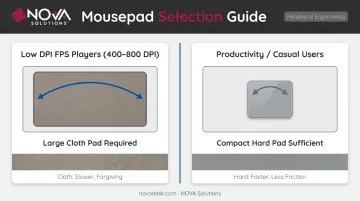
- Low DPI (400–800) FPS players: Need a large cloth pad for full-arm sweeping movements — undersized pads create artificial movement constraints
- Productivity or casual setups: Smaller hard-surface pads work fine and track precisely
- Surface texture: Cloth pads are slower and more forgiving; hard pads are faster with less friction. Match to playstyle, not aesthetics
Lighting and Cable Organization
Functional vs. decorative lighting:
- Bias lighting reduces eye strain — functional
- RGB underglow looks good — decorative
- Overhead room lighting affects focus and mood — both
The AOA recommends positioning screens to avoid glare from windows and overhead lights, and using blinds or lower-wattage bulbs where needed. Don't skip this step if your monitor faces a window.
On cable clutter:
- Tangled cables restrict mouse movement and create tripping hazards
- Clutter increases desk cleaning friction and builds visual distraction over long sessions
- Route cables through a management channel or clip them to the desk edge — out of sight, out of the way
Common Mistakes When Setting Up a Gaming Desk
Most setup problems aren't obvious until the damage is done. These three mistakes are the ones most likely to cost you comfort, accuracy, or both:
- Guessing desk and chair height instead of measuring — neck, wrist, and back strain don't appear immediately, so most people never trace the pain back to a setup decision made weeks earlier
- Letting aesthetics drive positioning: glass surfaces disrupt mouse tracking, monitors angled too high for symmetry force constant neck extension, and RGB alone leaves eyes working harder than necessary without proper ambient lighting
- Going too small on desk size — fitting dual monitors, a full-size keyboard, a large mousepad, and any streaming gear onto a desk under 55 inches means something always gets pushed into a suboptimal spot, usually the mousepad, which directly affects aim
Frequently Asked Questions
What gaming desk do pros use?
Most competitive esports players use large, flat desks in the 60–72 inch range — simple, stable surfaces prioritizing clutter-free area. Tenkeyless keyboards and oversized mousepads are near-universal. The emphasis is on reliable surface space, not features.
Is a desk too high bad for FPS games?
Yes. A desk that's too high forces your elbow and wrist above the neutral parallel position, reducing mouse control precision and causing fatigue faster. For FPS gaming specifically, forearms should rest parallel to the desk surface or slightly declined.
What size desk do I need for a gaming setup?
Minimum 55 inches wide for a single-monitor setup; 60–72 inches for dual-monitor or streaming configurations. Depth should be at least 28 inches to keep monitors within the safe 20–28 inch viewing range.
How high should my monitor be for gaming?
The top of the screen should sit at or just below eye level when you're seated in correct posture, with the display approximately arm's length away (20–28 inches). This reduces neck strain and supports a natural downward viewing angle.
Do I need a dedicated gaming chair or will any chair work?
Any chair with adjustable seat height, lumbar support, and adjustable armrests will do the job. Quality ergonomic office chairs often outperform dedicated gaming chairs for long sessions, particularly for lumbar support.
What is the best way to manage cables on a gaming desk?
Switching to wireless peripherals makes the biggest immediate difference. From there, use an under-desk tray for the power strip, velcro ties to bundle cables by destination, and adhesive clips to route the rest along desk legs. Desks with built-in wire channels handle most of this automatically.